Project hosts
Use an exam scratchpad host
Set up, rehearse, run, and end an in-person exam on a private project host, with a clean, network-isolated notebook project for each student.
What exam mode does
Exam mode turns one of your private project hosts into a temporary computing service for an in-person exam. Each student opens a link, enters a shared access token, and gets their own clean CoCalc project on that host, without a CoCalc account. When the exam ends, CoCalc erases every student project.
Every student project in a run has:
- the same software image (RootFS), pinned to one exact version
- the same CPU, memory, and disk limits
- no Internet access: outbound networking is blocked, and CoCalc tests the block before any student can join
- no file uploads, no collaborators, and no AI assistance
- a terminal only if you allow terminals
Exam mode does not deliver questions, identify students, collect answers, grade work, or proctor. Students copy their results onto paper or into your institution's assessment system. Use exam mode alongside a lockdown browser or an assessment platform, not instead of one.
The steps below come in five parts. Do Part 1 once per host. For each exam, do Part 2, then Part 4, then Part 5. Rehearse with Part 3 at least one day before your first live exam.
Before you start
Check every item. If one is missing, fix it before exam day.
- Your account can use exam mode. You must be a site administrator, or a site administrator must set your account's Exam scratchpad hosts entitlement to Allow. Without it, the Exams tab shows Exam mode is not enabled for this account.
- You have a private project host that you can start and stop. See Use project hosts. For a live exam, use a host with Standard (on-demand) pricing. A Spot host works for practice, but the cloud provider can stop it at any time, including during an exam.
- The host is large enough. See Choose the host size below.
- The host owner's account has enough credit to run the host for the whole exam. The host's normal billing applies; there is no separate exam billing.
- You have a software image (RootFS) that contains everything students
need. It must include Jupyter with a Python 3 kernel named
python3, because CoCalc tests the image by running a Python notebook. Students cannot upload files, so any data files, notebooks, or packages they need must already be in the image. - If students use a lockdown browser, it is configured. See Configure a lockdown browser below.
Part 1: Set up exam mode on the host
Do this once per host. CoCalc keeps these settings for every later exam.
- Open the project hosts page. Open the account menu at the bottom of the sidebar, select Compute: project hosts and VMs, then select the Project Hosts tab.
- Select your host's name. The host's details open, with tabs such as Overview, Access, and Exams.
- Select the Exams tab.
- Turn on Enable exam mode.
- In Public scratchpad title, enter the name students will see, for example "Math 101 Final Exam". It becomes the heading of the page where students join, the browser tab title, and the title of each student project.
- Stable admission token: leave this empty so that CoCalc generates a token when you save, or enter your own token of 8 to 200 characters. Students need this token to join.
- Set the limits for each student project:
- Maximum projects (students): the most students who can join. Each student uses one project. Add a few extra places for your own test and for students who need to rejoin from a different browser.
- CPU per project, Memory (MB), and Disk (MB): the resources each student gets. The defaults (1 CPU, 2,000 MB of memory, and 5,000 MB of disk) suit typical notebook work.
- Set Maximum run (minutes), from 180 to 2,880. Whenever you choose the time when student projects are deleted, it must be no more than this many minutes away. Choose at least the time from when you will prepare a run (for example, 45 minutes before the exam) until the exam ends.
- Set Cleanup grace (minutes), from 1 to 60. This is how long CoCalc may keep trying to delete projects after the deletion time before it forces the host to power off. It is not extra time for students.
- Leave Allow terminals (disabled by default) off unless students need a terminal. During the student rehearsal, check the New menu as in Part 3.
- Select Save configuration. When the Confirm security action dialog opens, verify your identity and select Verify.
- A link now appears under the token. Select Copy link and keep the link somewhere safe. This is the admission link that you give to students. It stays the same for every later exam on this host until you change the token.
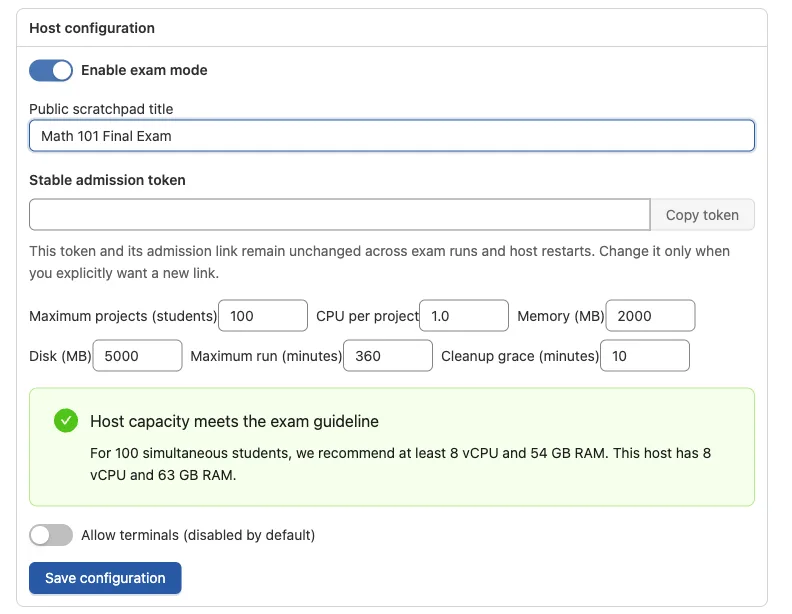
Below the settings, the Exams tab compares your host with the recommended size. This is advice only; it never stops you.
Part 2: Prepare a run
A run is one exam session. It creates the student projects and ends when all of them are erased. Prepare a new run for every exam and every rehearsal, 30 to 60 minutes before students arrive.
- Start the host if it is not running, and wait until it is running. Until then, the Exams tab shows Start the project host to prepare an exam. See Project host lifecycle actions.
- In the host's Exams tab, find Prepare an exam run.
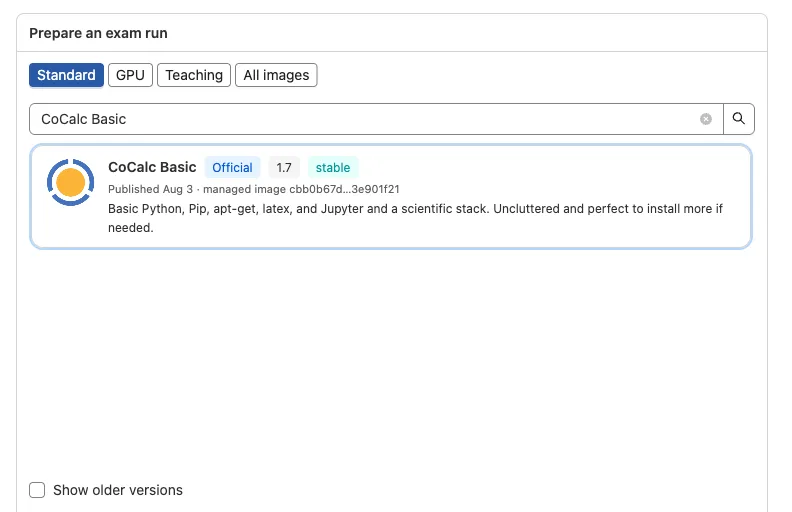
- Select the software image. Use the Standard, GPU, Teaching, and All images buttons and the search box to find it, then select it. Select Show older versions if you need an earlier release.
- Choose when student work is erased:
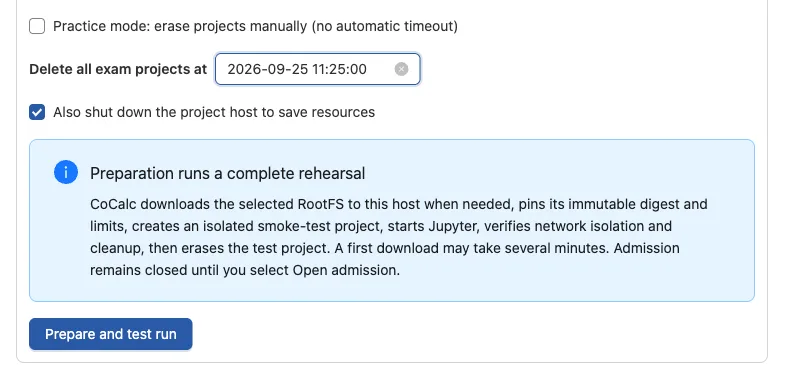
- For a timed exam: set Delete all exam projects at to the date and time, in your local time zone, when all student projects must be deleted. Choose a time after the exam ends. It must be at least one minute from now and no more than Maximum run (minutes) from now. Keep Also shut down the project host to save resources selected unless the host must keep running other projects afterward.
- For an open-ended practice session: select Practice mode: erase projects manually (no automatic timeout). Nothing is erased until you end the run. The host keeps running, and billing, until you stop it yourself, including after you end the run.
- Select Prepare and test run, then verify your identity in the Confirm security action dialog. If the button is unavailable, the message Complete these steps before preparing the run lists what is missing.
- Wait for preparation to finish. While it runs, the Prepare an exam run card shows Preparing and testing the exam environment in the browser tab where you started it, and the tab's settings stay locked until it finishes. CoCalc downloads the image if the host does not have it yet, creates a test project, runs a Python notebook in it, checks that the test project cannot reach the Internet, erases the test project, and checks the web address students will use. With an image the host already has, this usually takes about a minute; a first download can take several minutes. When preparation succeeds, CoCalc briefly shows Exam run prepared and tested.
- When it finishes, check the Current run card:
- The status tag next to Current run reads ready.
- All seven check tags are green:
host_running,public_route,rootfs,local_snapshot,network_policy,project_smoke, andwatchdog. To see what each one checks, select What these checks mean. Onlyhost_runningandwatchdogdescribe the host right now. Preparation runs the other five once, and they are green only while the status is ready or open, and grey otherwise. - RootFS shows your image, Project cleanup shows the deletion time, Project host afterward shows your shutdown choice, Projects shows 0 followed by your maximum, Terminal shows your terminal choice, and Network shows outbound disabled.
If the status is error, or any tag is red while the status is ready, do not open admission. If a Last run card shows Preparation failed instead of a Current run card, the host did not start the run. See Troubleshooting below.
Students still cannot join. Admission stays closed until you open it in Part 4.
Part 3: Rehearse as a student
Rehearse at least one day before your first live exam, using the same host, software image, room network, and lockdown browser that students will use.
- Prepare a run as in Part 2. For a rehearsal, choose a deletion time shortly after the rehearsal, or use practice mode.
- Select Open admission.
- On a different computer, or in a separate browser profile, open the admission link. Use the lockdown browser if students will use one.
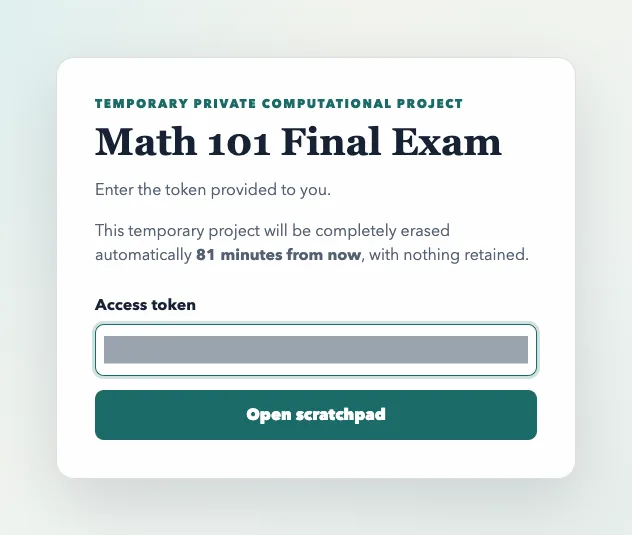
- Check that the page shows your title and "Enter the token provided to you.", and that the Access token field is already filled in. Select Open scratchpad.
- Check that the browser opens a new project at Files, without asking you to sign in.
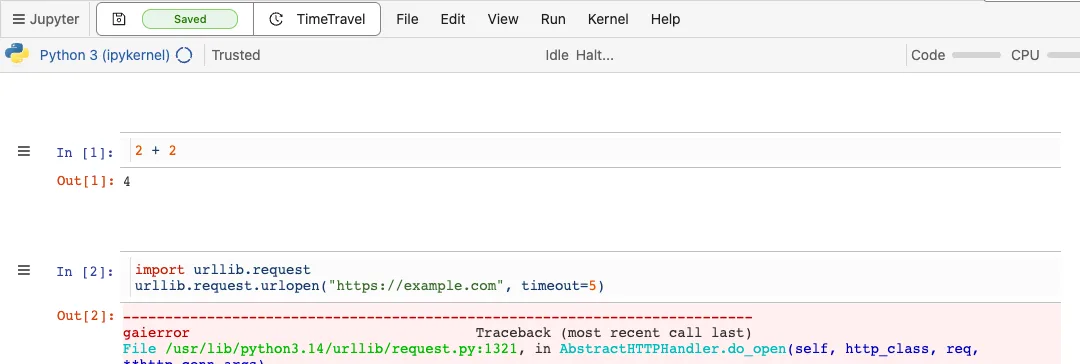
- Create a Jupyter notebook and run
2 + 2. - Refresh the page. Check that you return to the same project and notebook.
- Check that the Internet is blocked. Run this in the notebook; it must fail
with an error. The error can take up to a minute to appear and ends with a
message such as
Temporary failure in name resolution:
import urllib.request
urllib.request.urlopen("https://example.com", timeout=5)
- Check the terminal setting. If terminals are off, New does not offer Terminal.
- Return to the Exams tab and select Refresh status. Projects should now show 1.
- End the rehearsal as in Part 5. Check that the Last run card appears and shows all erased next to Student projects.
Part 4: Run the exam
- Prepare a new run as in Part 2, and check that it is ready with every tag green.
- When students are ready to begin, select Open admission under Admission in the Current run card. The status changes to open.
- Give students the admission link. If a student cannot use the link, give them the Student URL shown in the Current run card and the token; they type the token into Access token.
- Select Refresh status to see how many students have joined.
- If more students arrive than planned, enter a larger number in Maximum students for this run and select Increase capacity. The change takes effect immediately. You cannot lower the number during a run.
- To change the deletion time or the shutdown choice while the status is ready or open, change Delete all exam projects at, Practice mode: erase projects manually (no automatic timeout), or Also shut down the project host to save resources under Cleanup, then select Update cleanup time.
- If the token or link leaks, select Rotate token. This creates a new token and a new admission link. Give the new link to students who have not joined yet, and ask them to open it rather than refresh a page they opened earlier. Students already working are not affected.
Tell students before they begin:
- Work in one browser for the whole exam. Reopening the link in the same browser returns to the same project. A different browser starts a new, empty project; return to the original browser to continue the earlier work. If its browser data was cleared, that session cannot be recovered through the link.
- Copy answers onto paper or into the assessment system before the deletion time. Nothing is kept afterward.
- The orange Temporary button at the top right of the page shows when the project will be erased.
Part 5: End the exam and erase the projects
- Automatically: at the time set in Delete all exam projects at, CoCalc closes admission and erases every student project. If Also shut down the project host to save resources is selected, the host then shuts down.
- Early, or to end a practice session: under End the exam, select End exam and erase now. The line above the button says whether the host will also shut down. That follows the run's shutdown choice, which you can change under Cleanup while the status is ready or open. Depending on that choice, CoCalc asks Erase all exam projects and shut down this host? with the button Erase and shut down, or Erase all exam projects now? with the button Erase. Confirm.
Do not stop the host yourself before cleanup has finished. CoCalc needs the host running to erase the projects. When cleanup is complete, a Last run card replaces Current run. It shows when the run ended and all erased next to Student projects. Once CoCalc has recorded the cleanup, the card stays visible after the host shuts down.
If the host shut down at the deletion time, the status can show error even though cleanup finished, because the host powered off before CoCalc recorded it. Start the host. CoCalc then confirms the cleanup, shows the Last run card, and shuts the host down again. To confirm it at once, select End exam and erase now.
After cleanup:
- every student project, with its files and TimeTravel history, is gone
- the host, its disk, the student web address, the admission link, and the downloaded software images remain, ready for your next exam
- if the host shut down, its compute billing stops
Troubleshooting
| What you see | Why | What to do |
|---|---|---|
| Exam mode is not enabled for this account | Your account does not have the exam-mode entitlement. | Ask a site administrator to set your Exam scratchpad hosts entitlement to Allow. |
| Start the project host to prepare an exam | The host is not running. | Start the host and wait until it is running. |
| Complete these steps before preparing the run | A required setting is missing. | Do each step that the message lists. |
| The status is error | Preparation or cleanup failed. The Error line in the Current run card says why. In this status, five check tags are grey, because the host does not report them. | Select End exam and erase now and wait for the Last run card. Restart the host if it shut down, fix the cause, then prepare a new run. A message that starts with exam project readiness failed means the test project could not run its checks; a common cause is an image without Jupyter and a python3 kernel. |
| A check tag is red while the status is ready or open | That check is failing now. | Do not open admission. Select Refresh status. If the tag stays red, end the run and prepare a new one. |
| The Last run card shows Preparation failed | The host refused the run before starting it, for example because the image was not ready or another run was still active. No student could join, so Student projects shows none were created. | Fix the cause that the message names, then prepare a new run. |
| A student sees "This temporary scratchpad has been prepared, but access is not open yet." | Admission is closed. | Select Open admission. The student's page says "This page checks again about every 30 seconds." and shows Open scratchpad once admission is open; the student can also refresh it. A token from the admission link is kept for that browser tab. |
| A student sees "This exam session has ended. Its temporary projects are being erased." | The deletion time passed, or you selected End exam and erase now, and cleanup is running. | Nothing needs fixing. If students need more time, prepare a new run once cleanup finishes; the earlier projects are erased. This page does not check again by itself, so students then reload it or open the admission link again. |
| A student sees "This scratchpad is not available right now. Ask your instructor." | The run's status is error. | Follow the rows for an error status in this table. |
| A student sees invalid access token | The token was mistyped, or it was replaced with Rotate token. | Give the student the current admission link, which fills in the token. |
| A student sees exam project capacity has been reached | The run is full. | Raise Maximum students for this run and select Increase capacity. The student can then select Open scratchpad again; the token stays filled in, unless the browser does not let the page keep it, in which case the student opens the admission link again. |
| A student sees too many unsuccessful exam join attempts; try later | Too many wrong tokens came from the same network address in a short time. All students behind one Internet address, such as a classroom network, share this limit, and while it applies even a correct token is refused. | Wait several minutes, then try again with the correct token; until the limit clears, it is refused with this same message. To prevent it, give students the admission link instead of asking them to type the token. |
| A student sees exam admission requires a same-origin request | The browser did not send the standard Origin header when submitting the token. |
Change the lockdown browser's settings, or use another browser. |
| A student sees scratchpad access is closed | The deletion time has passed, or the run ended. | Prepare a new run if students need more time. |
| A student who reloads the page after the exam sees a Cloudflare error page, such as "Error 1033", instead of the exam page | The run ended and the host shut down, so the student web address no longer answers. | Nothing needs fixing. If students need more time, start the host and prepare a new run; the earlier projects are already erased. |
| A student sees "No exam is open at this address right now." | No run is using the student web address: no run has been prepared yet, or the run ended while the host kept running. | Select Prepare and test run, then Open admission. The student's page checks again about every 30 seconds and shows Open scratchpad once admission is open, so the student does not need to reopen the admission link. The token stays filled in, unless the browser does not let the page keep it, in which case the student opens the admission link again. |
| A student's earlier work is missing | The student opened the link in a different browser, which created a new project. | Return to the original browser or profile and reopen the link there. If that browser's data was cleared, or the run has ended and cleanup erased the project, the work cannot be recovered. |
| The status stays closing after the deletion time, and the host is off | The host was set to shut down at the deadline. At the deadline it erases the exam projects and shuts itself down. CoCalc records the result the next time the host runs. | Nothing needs fixing. To finish now, start the host: CoCalc confirms the cleanup and the Last run card appears. |
| The status is error after the deletion time | Cleanup could not finish. CoCalc keeps retrying while the host runs. If host shutdown was selected, the host powers off anyway after Cleanup grace (minutes). | Start the host if it is off. CoCalc then finishes or confirms the cleanup, and the Last run card appears; to do this at once, select End exam and erase now. If the status stays error while the host runs, contact support. |
Choose the host size
The Exams tab recommends a host with at least:
- 8 vCPU
- RAM, in GB, greater than 3 plus half the number of students
For example, 20 students need at least 8 vCPU and 14 GB of RAM, and 200 students need at least 8 vCPU and 104 GB of RAM. The tab compares your host with this recommendation when you set Maximum projects (students) and when you increase capacity during a run. The recommendation never blocks setup or admission.
The formula leaves plenty of headroom. Exam projects usually use much less than their memory limit, so do not size the host by multiplying that limit by the number of students. A smaller host can work for a known workload, but only rely on it after a full rehearsal with the real image, notebooks, and number of students. Because exams are short, choosing a larger host is often the simplest way to avoid slowdowns.
Configure a lockdown browser
Allow the single student web address shown as Student URL in the Exams
tab, which starts with https://exam-, including secure WebSockets to the
same address. Everything students use comes from that address.
Also check that the lockdown browser:
- opens the page directly, not inside a frame, because exam pages refuse to be shown inside another site
- sends the standard
Originheader when a student submits the token - keeps its cookies for the whole exam, so that a student who reopens the browser returns to the same project
Lockdown browsers differ in their URL, certificate, pop-up, clipboard, and WebSocket rules, and CoCalc cannot detect those settings. Rehearse with the exact configuration and room network before the first live exam, and check that refreshing the page, running notebooks, autosave, and reconnecting all work.
Reference
Settings
| Setting | Allowed values | Default |
|---|---|---|
| Public scratchpad title | 1 to 100 characters | Exam Scratchpad |
| Stable admission token | 8 to 200 printable ASCII characters | generated by CoCalc |
| Maximum projects (students) | 1 to 1,000 | 100 |
| CPU per project | 0.1 to 128 | 1 |
| Memory (MB) | 256 to 1,048,576 | 2,000 |
| Disk (MB) | 1,000 to 4,000,000 | 5,000 |
| Maximum run (minutes) | 180 to 2,880 | 360 |
| Cleanup grace (minutes) | 1 to 60 | 10 |
| Allow terminals (disabled by default) | on or off | off |
You cannot change these settings while a run is active. Outbound networking is always disabled.
Run statuses
The Exams tab shows the status of a run in progress next to Current run. The CLI reports every status.
| Status | Meaning |
|---|---|
| preparing | CoCalc is preparing and testing the run. |
| ready | The run passed its checks. Admission is closed. |
| open | Students can join. |
| closing, cleaning | The run is ending and the projects are being erased. |
| stopped | All projects are erased. The Exams tab shows Last run instead of Current run, and you can prepare a new run. |
| error | Preparation or cleanup failed, or CoCalc could not record a finished cleanup. See Troubleshooting. |
A host runs one exam at a time.
The admission link
The admission link looks like https://exam-<name>.<domain>/#token=<token>.
Because the token comes after #, the browser fills in the token without
sending it to the server, then removes it from the address bar. The page keeps
the token for that browser tab, so reloading the page, or opening the link
again in the same tab, fills it in again. It forgets the token if the host
rejects it as invalid, for example after Rotate token. A newer link
replaces a token the page filled in, but never one the student typed. If the
browser does not allow the page to keep the token, it stays in the address bar
instead. The link stays
the same across host restarts and new runs. It changes only when you change
Stable admission token between runs or select Rotate token during a
run.
What is erased and what is kept
Student projects exist only on the exam host. They are not backed up, and they cannot be restored from snapshots. TimeTravel works while a project exists and is erased with it. At cleanup, CoCalc deletes each student project, its files, and its anonymous account, and then checks that they are gone. Nothing can be recovered afterward, so students must copy anything they need before the deletion time.
Two independent timers enforce the deletion time: one on the host itself, which checks every few seconds, and one in CoCalc's central service, which checks every 30 seconds. If one of them restarts, the other still triggers cleanup. If cleanup cannot finish and host shutdown was selected, the host powers off after Cleanup grace (minutes) to stop spending.
Billing
The host owner pays the host's normal compute and network charges for as long as the host runs, including during the exam. There is no special exam billing and no automatic spending limit. In practice mode, the host keeps running, and billing, until you stop it yourself, including after you end the run.
Automate with the CLI
Every control in the Exams tab is also available through
cocalc host exam. This is useful for repeatable rehearsals, institutional
runbooks, and asking a CoCalc agent to prepare or inspect an exam. Use
cocalc host rootfs <host> to list the images already cached on a host.
# Inspect the current configuration, run, readiness checks, and student URL.
cocalc host exam status <host>

# Enable exam mode and configure per-project limits.
cocalc host exam configure <host> --enable --max-projects 100 \
  --project-cpu 1 --project-memory-mb 2000 --project-disk-mb 5000 \
  --maximum-run-minutes 360 --cleanup-grace-minutes 10 --deny-terminal

# Prepare the run and wait for its smoke test to finish.
cocalc host exam prepare <host> --rootfs <image> \
  --delete-at "FUTURE_UTC_TIMESTAMP" --stop-host

# Rotate a lost token before opening admission, then admit students.
cocalc host exam rotate-token <host>
cocalc host exam open <host>
cocalc host exam status <host> --wait

# Change cleanup policy, or end early and permanently erase all exam projects.
cocalc host exam deadline <host> --delete-at "UPDATED_FUTURE_UTC_TIMESTAMP" --stop-host
cocalc host exam deadline <host> --manual-cleanup
cocalc host exam capacity <host> --max-projects 110
cocalc host exam end <host> --stop-host --yes
Replace the timestamp placeholders before running the prepare or deadline
commands. Use an ISO 8601 UTC timestamp in the form YYYY-MM-DDTHH:MM:SSZ
that is at least one minute in the future and within the configured Maximum
run (minutes) interval. The configure example keeps the existing admission
token or generates one when needed.
Configuration, preparation, and token rotation return the stable plaintext
admission token and a copyable admission URL. The authenticated status command
also shows them before, during, and after a run. Mutation commands require
fresh authentication; run cocalc auth bootstrap first when the current CLI
session is not elevated. Pass --keep-host-running instead of
--stop-host when cleanup should leave the reusable project host online.
Destructive early cleanup always requires --yes.
Agent notes
When helping with an exam scratchpad host:
- If the Exams tab shows Exam mode is not enabled for this account, a site administrator must set the account's Exam scratchpad hosts entitlement to Allow. Site administrators are always eligible. Exam changes also require permission to start and stop the host, and every change requires fresh authentication.
- Name controls exactly as the interface shows them: Enable exam mode, Save configuration, Prepare and test run, Open admission, Increase capacity, Update cleanup time, Rotate token, End exam and erase now, and Refresh status.
- For preparation failures, check that the host is running, that the image is
in the managed image catalog or already on the host, and that the image
includes Jupyter with a
python3kernel. - For student join errors, use the troubleshooting table. The wrong-token limit counts attempts per network address, not per student.
- A student's project is tied to their browser. Opening the link in another browser starts a separate project; the original browser can still reopen the original project until cleanup. Nothing can be recovered after cleanup.
- Rotating the token and changing the deletion time are refused once cleanup has started. The configuration cannot change while a run is active.