AI
Use the Agents workspace
Start an agent with a request, review its results, and continue the work from one workspace.
Start with a request
After signing in, CoCalc opens your projects list, or the page your link named. If you have no projects, or your new account has not used one, CoCalc may open the new-agent request box instead. Otherwise, choose New agent under Agents in the sidebar, or select one of your agents there. If the Agents section is collapsed, expand it first with the arrow to its left (Expand Agents). The section lists your pinned agents, a few others (the most recent, or the first in your custom order), and the open agent; All agents… below them opens the Agents page with the rest. At phone width, if CoCalc shows the sidebar instead of the request box, choose New agent there. Describe a result you can inspect, such as a comparison, document, application, or visualization. Include the relevant files and the checks that would make the result useful.
When CoCalc opens the request box for you, it asks What would you like to work on? There is no name or project to choose. Below the box, the runtime menu starts at Codex; choose Claude there for Claude Code, where the site enables it. For Codex, the model, thinking level, and payment source buttons work as in the new-agent form described below. If CoCalc asks you to verify your email, do that first. When you start typing, CoCalc prepares a project and starts it, which can start project compute; the chat and the named agent are created when you send, with the runtime chosen then. Choose the up-arrow Start agent button, or press Shift+Enter, to send your request. If the chosen runtime has no way to pay yet, the button's tooltip reads Sign in with ChatGPT to start or Connect Claude to start, and sending opens that sign-in instead; your request stays in the box.
In the new-agent form, type your request, then check the settings below the box. They start from the agent you had selected, if any.
- Click the suggested name, shown after an @, to change the agent's Name.
- The folder button shows the project and working directory. Open it to change the Project, Working directory, or Description (optional). With no project, CoCalc says Your first project will be created automatically, and titles that project from the first line of your request, or My first project if there is no request.
- In the runtime menu, choose Claude for Claude Code, where the site enables it; see Use Claude Code. For Codex, click the model, thinking level, or payment source button to change it. When CoCalc Membership pays, whether chosen directly or automatically, the thinking level is fixed. Access, funding, project permissions, and resource limits still apply.
- Choose Start agent, or press Shift+Enter. This creates the named agent and sends your request. It can start project compute and use model allowance. If CoCalc warns that the agent was created but the first request could not start, the request is preserved as a draft for you to inspect before trying again. With an empty request, the button's tooltip reads Create agent without a task; it creates the agent without sending a request.
If the sidebar is hidden, click the Show sidebar button at the top left (the CoCalc logo with a right-pointing chevron). At phone width, use the menu button (three horizontal lines, named Show agents for screen readers), or the back arrow in an agent's conversation. If the sidebar has no Agents section, check that Disable all AI integrations is off in account AI settings. If that switch is not shown there, ask the site administrator whether AI is enabled.
Review and continue
Select a named agent to return to its conversation. Open a saved result from the chat to inspect it beside your request, then ask the same agent for a specific correction or another version. Artifacts in the sidebar helps you find artifacts from named agents. Use Open in project when you need the underlying files, software, or complete project view.
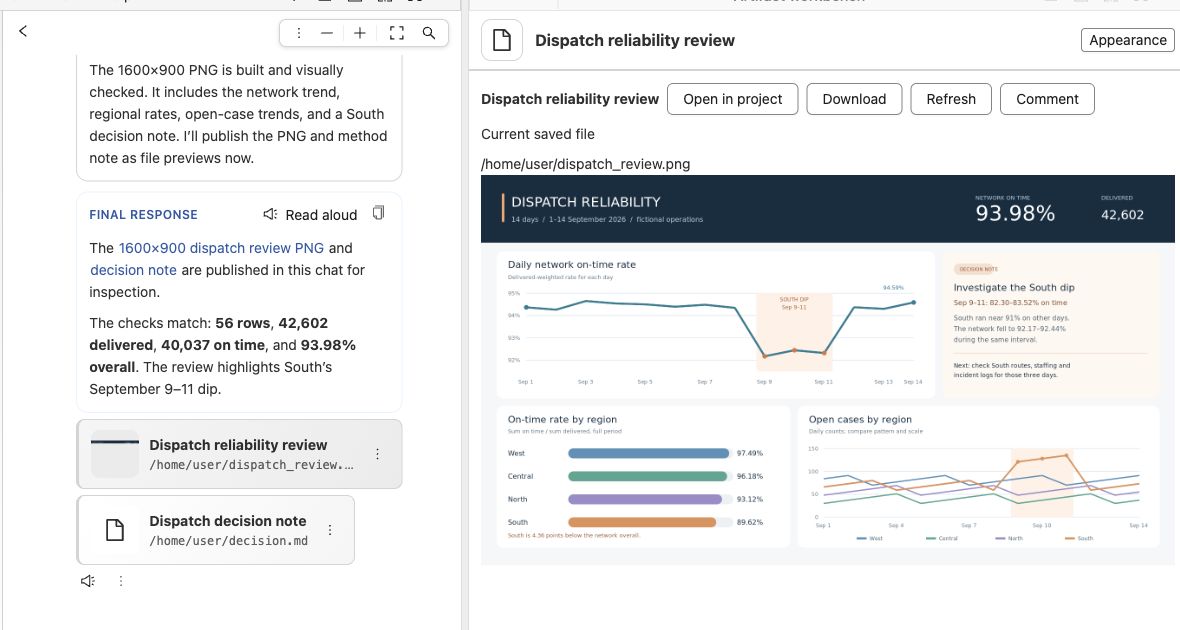
This example shows a reviewable image result beside the conversation. The underlying file remains in the project.
Turn a recurring task into an app
Start in an agent conversation with a non-sensitive copy of a request tracker that has request, owner, status and due-date columns. Put the copy in the project using Files, then give the agent its path. Keep the original unchanged. You can start with a request like this:
Build an app for reviewing this request tracker. Let me filter by owner and status and find overdue requests. Keep the input file unchanged. Open the app in the project browser and test those actions, including missing due dates.
On sites with the project browser, ask the agent to share the running app's browser card in the conversation. Try a filter and inspect an overdue request. A screenshot or saved file preview is not a running app: check that the controls work and ask which address and process serve it. If it does not open, ask the agent to check that process and its logs before retrying. The browser guide explains access and handoff.
Then request a change, such as: "Add a view for unassigned requests and make overdue items easier to find." Check the changed view and the original input again. When finished, ask the agent to stop the app's server; keep the code and output you want to continue using, and remove only disposable copies.
Investigate a change in your data
Use a non-sensitive export of measurements you already track, with dates, categories and values. Put a copy in the project and give the agent its path, the units and the comparison you want. For example:
Compare the latest complete period with the previous one. Check missing values and duplicates first. Show which categories explain the largest change, include a chart and save a short explanation of the calculation. Keep the input unchanged and identify any assumptions you need me to confirm.
Ask for the chart and calculation note as saved results you can open beside the conversation. Check the date range, units, missing-data handling and at least one aggregate against the input. If the dates or units are unclear, settle those questions before using the comparison.
Try a follow-up such as: "Compare periods of the same length, exclude incomplete records and show how the conclusion changes." Keep the input, calculation and outputs together so you can revisit the result. Remove only disposable copies when finished. For work that exceeds the project's resources, consult compute selection.
Share an agent with people
Open the agent's actions menu and choose Share with people…. Select the people to invite, then choose Invite. Existing project collaborators receive a notification linking to the agent. Other people receive a project invitation; after accepting it, they open the agent from the invitation and choose Add to my agents to keep it in their own Agents list.
Participants work in the same conversation and project. Sharing does not make an independent copy of the files or software environment. Inviting someone who is not already a collaborator also invites them to its project. Each person can start turns and send guidance. A turn uses the initiating participant's payment selection: this may draw on a connected subscription, an account API key, a shared project key, or available CoCalc membership funding. Check the selected funding source before sending.
Choose payment methods across your agents
On the Agents page, select your agents and choose Set payment method…. You can leave a provider unchanged, select a connected credential, or have the selected agents follow your account default. Make this my default changes that provider's default as well; other agents following the default use it too. Codex and Claude have separate choices.
For Claude, Project secret (ANTHROPIC_API_KEY) uses a configured project key. CoCalc Membership (Claude Haiku 5.5), when your site offers it, pays from your membership's included AI allowance, the same allowance as Codex's CoCalc Membership option. Agents with project-managed credentials are not changed by this control.
These choices belong to your account and are stored on the server, so a browser reload does not discard them. For shared agents, another participant's choice does not replace yours. Credentials, provider access, project permissions, and usage limits still apply. Agent Network permission and payment authorization are separate; see Use Claude Code and Agent Networks guidance.
Start fresh without removing your work
Choose Start fresh conversation… in the agent's actions menu. Clear context keeps the same thread and its earlier messages, with a Context cleared marker; the next turn does not use the earlier conversation as its context. Start new thread instead keeps the old conversation in another thread. Both retain the agent's files, name, networks, appearance, and settings.
Only the account that originally registered the agent can use Start new thread. Everyone following that shared agent then sees its new conversation.
This does not delete messages, undo file changes, or reset the software environment. Clear context works at any time: a running turn, or a queued message starting at that same moment, finishes with the old context; later turns start fresh. Before Start new thread, finish or cancel running and queued work, and disable scheduled work.
Copy an agent from the CLI
From a terminal signed in to CoCalc, inspect the command's current options:
cocalc agent create --help
To copy an existing named agent and leave a prepared request for review:
cocalc agent create review-next --from review --draft-file next-request.md
Replace review with your existing agent's name, choose an unused name for the copy, and put the proposed request in the local file next-request.md. The copy has a forked conversation in the same project and chat file, with an independent agent session. Its files and installed software are still shared with the original. The draft is not sent: open the new agent, review its settings and request, then send it when ready. The command rejects a name you already use or a source agent it cannot find.
Check the command output for warnings: the agent can be created even if its payment selection or draft could not be copied. If naming fails after the fork is created, the error identifies its unnamed thread; inspect that thread before retrying.
Bring existing work into Agents
Only registered named agents are listed under Agents; existing project chats are not imported automatically. In a project chat, choose Name agent to register that thread. Naming it does not start work, grant communication with another agent, or change who can read the shared chat.
Pin an agent to keep it near the top. You can use recent or custom ordering and group the list by project. These list preferences are personal to your account. To take an agent out of the sidebar without removing it, point at it there, click its More actions for @name button (a vertical ellipsis), and choose Hide from Agents. To remove it, choose Remove from Agents… in the same menu and confirm with Remove from Agents; the conversation and artifacts remain, but that agent becomes unavailable to its Agent Networks. Removing frees its named-agent slot, and its name can be used again. Hiding does not free a slot.
Find agents on the Agents page
The Agents page opens from the sidebar's Agents entry, or from
All agents… below the listed agents. When the sidebar leaves out some of
your agents, the link also says how many, as in All agents (3 more)…; hidden
agents are not counted. The page's address ends in /all-agents.
Mine lists all of your agents, including hidden ones, and shares the sidebar's pins. Its actions menu for each agent also has Remove from Agents…. To show a hidden agent in the sidebar again, choose Show in sidebar in that menu.
Shared with me lists agents that other people registered in projects you own or collaborate on. Select one to open its conversation in its project.
Sort either list by Recent or Name; on Shared with me, Recent puts the most recently registered agents first, after any you pin. To group either list by project, open the menu that shows No grouping and choose By project. Shared with me can also be grouped By person.
For project-chat controls and access setup, see Open Codex chat and Connect AI access. For the complete workflow index, Agent Networks, workbench results, and Claude differences, see Agent features: Codex and Claude Code.